How do I install the Teamopipe Chrome extension?
Teamopipe is a passwordless app that enables you to register and login using your Gmail account.
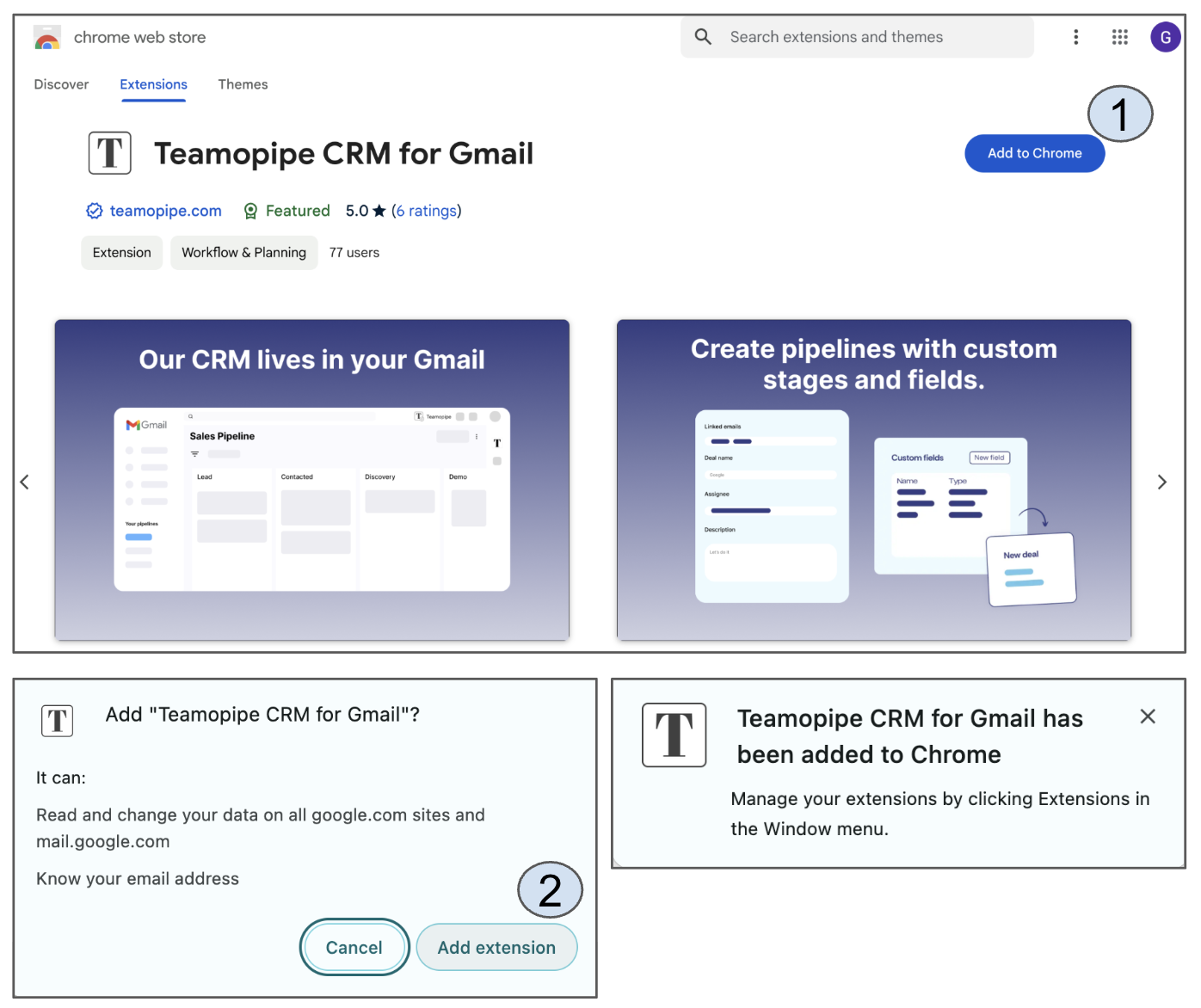
To install the app, visit Chrome Web Store and click the Add to Chrome button. You will be prompted to confirm the installation; to proceed, click the Add extension button. Once confirmed, you will receive a notification that the app has been successfully added to Chrome.
Next, open Gmail and refresh your browser. You will be asked to sign in to the app using your Google account.
After signing in, your email interface will be enhanced with Teamopipe features — refer to the screenshots and descriptions below:
Troubleshooting:
| Problem | Solution |
|---|---|
| No sidebar appears | Refresh Gmail and make sure Teamopipe is enabled in chrome://extensions . |
| “App blocked” message | If you use Google Workspace, ask your admin to allow Teamopipe. See more instructions here. |
| Still not showing up | Try disabling other CRM or Gmail extensions, then reload Gmail. |
Still not working? Contact our support team through the contact form or the chat widget on this page.
First steps after sign up
After successfully signing up, your Gmail interface will be enhanced with the following additions:
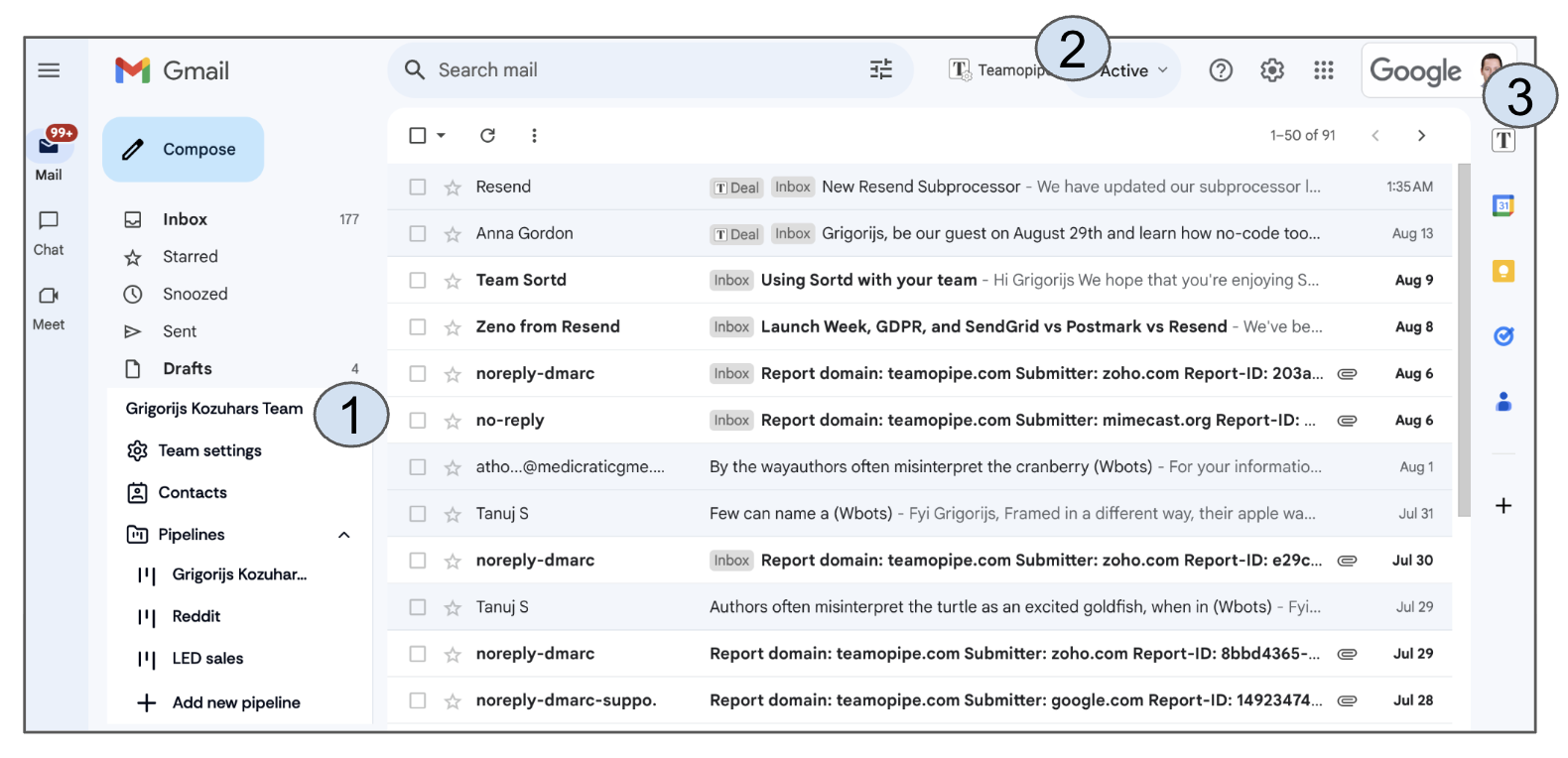
1 - Team Section: Located on the left side, this section contains Team Settings, Contacts, and Pipelines. For each new user, a new team is automatically generated using the user's Google account name with a "Team" suffix. Name of the team can be changed.
2 - Teamopipe User Settings Button: This button appears in the top panel, to the right of the search bar. Clicking it allows you to select your language, choose a color mode (system or dark), and view invites from other teams. Keep in mind that for dark mode to work properly, you must also enable dark mode in your Gmail settings. This section also includes a link to the support chat.
3 - Teamopipe Button: Located in the top-right sidebar, this button allows you to close the deal detail view after opening it from the Pipeline (Kanban) or when viewing an associated email from the email list view.
Glossary
| Term | Meaning |
|---|---|
| Pipeline | A visual workflow representing your process (e.g., Sales, Onboarding). |
| Stage | A step within your pipeline (e.g., Contacted → Demo → Closed). |
| Deal Card | A single record (deal) showing contact info, fields, and activity. |
| Linked Contact | The Gmail contact connected to the deal. Emails appear here automatically. |
| List View | A spreadsheet-like view for filtering, sorting, and bulk editing deals. |
| Kanban View | A drag-and-drop board showing deals by stage. |
| Filter / Saved View | Pre-set criteria to see specific subsets of deals. |
| Changelog | Automatic record of every change made to a deal. |